Overview
User Creation enables an admin or user with appropriate access to add users in MRM Vault, by adding user details like username, email id, password etc. and assigning users appropriate groups. If SSO is enabled, this process is done automatically.
Prerequisite
Admin credentials and access are required to add a new user to the platform.
Topic Breakdown
Add User: Registration of a new user in the platform.
Edit User: Editing details of existing users such as email, first name, last name, groups.
How to
Add User
Click Administrative Options in the platform navigation menu.
Then click User Management in the submenu.
Select the Users tab.
Click ADD USER at the top right corner of the screen.
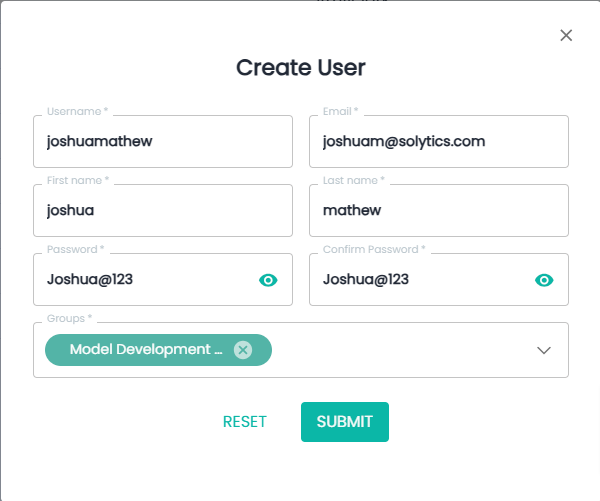
Enter mandatory user details; Username, Email, First name, Last name, Password and Groups.
Click SUBMIT.
Edit User
Click Administrative Options in the platform navigation menu.
Then click User Management in the submenu.
Select the Users tab.
Select and right-click a specific user to edit or update details.
Click Edit user.
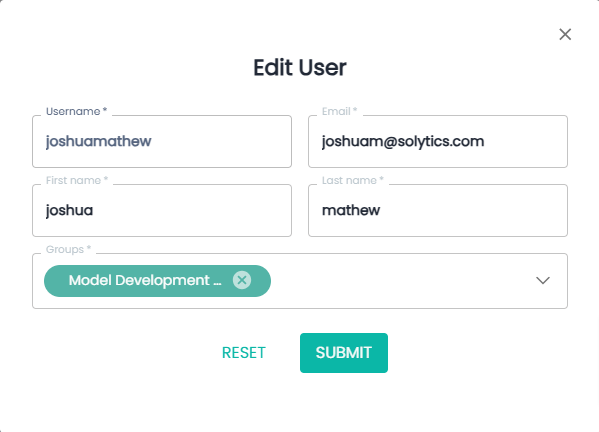
Update details.
Click Submit.
Example
Add user
Click Administrative Options in the platform navigation menu.
Click ADD USER and the user registration form pops up.
Add mandatory user details and click SUBMIT.
Registered user’s details will be visible on the user listing screen.
Edit user
Click Administrative Options in the platform navigation menu.
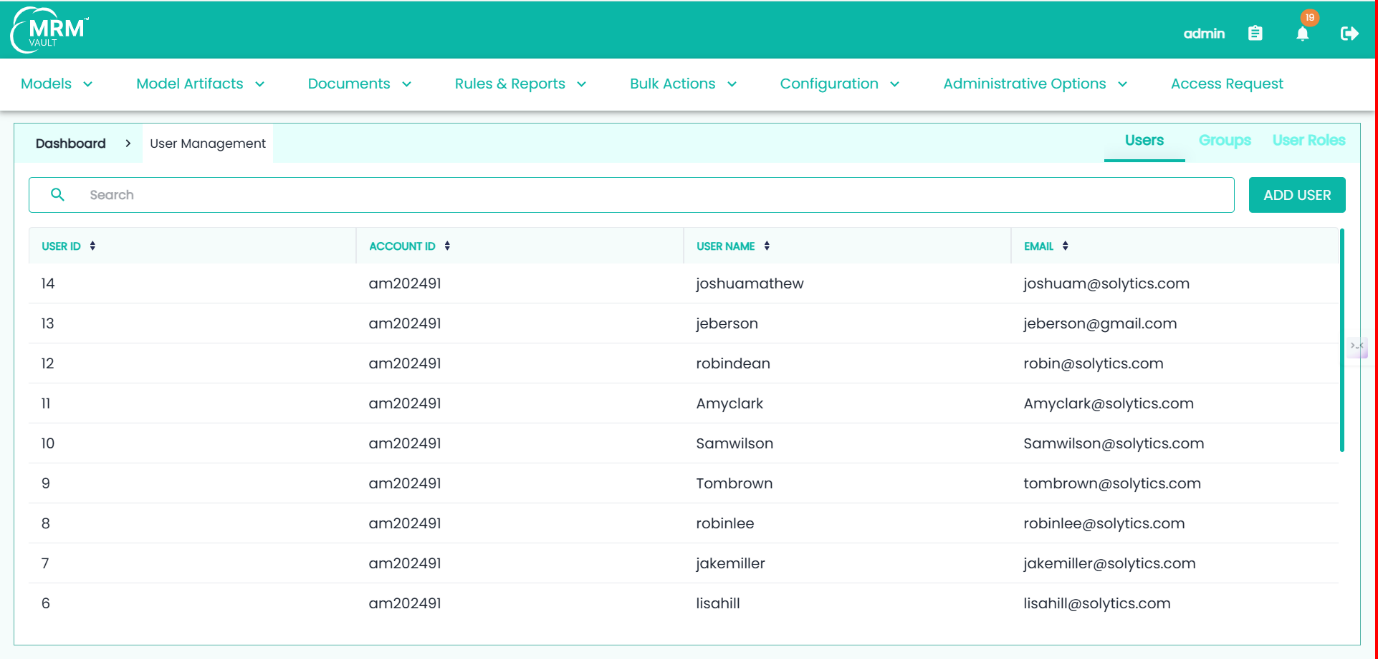
Select the Users tab and select and right-click a specific user to edit or update details.

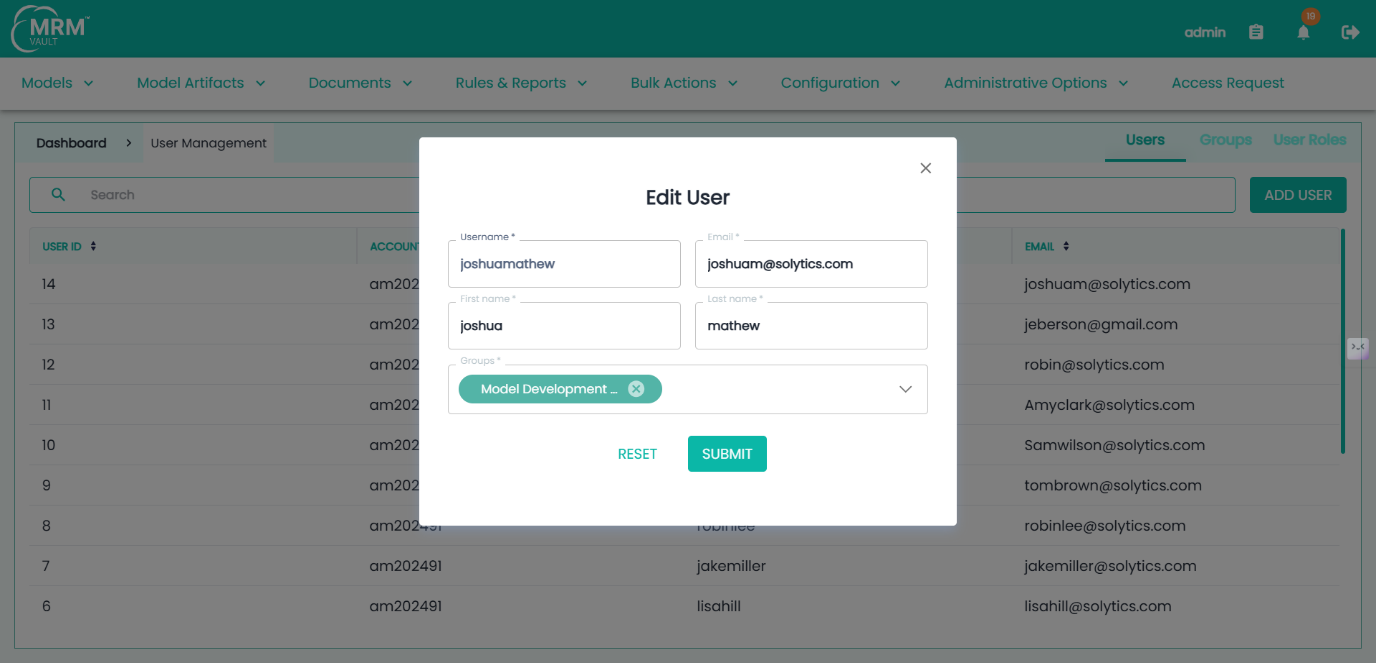
Edit the details of users and click SUBMIT.
Video
Limitations
A single user can be added to the platform at a time via user management ADD USER functionality.
FAQs
Q: Can I add some of the user details after the user creation?
A: No, mandatory details for adding a user to the platform must be submitted in the registration form.Q: Can a user exist in multiple groups?
A: Yes, a user can be assigned to multiple groups.Q: Who can add a user to the platform?
A: Admin or a user with write access permission to the user management module can add a user to the platform.Q: How do I know if a user was successfully added to the platform?
A: After submitting the user details, the newly registered user will appear in the Users tab, and any updates to existing users will be immediately reflected in the user list.Q: How do you reset the password for a user?
A: A user can reset his/her password using the Forget Password functionality on the login screen, the user will receive a password reset link through email.
Was this article helpful?
That’s Great!
Thank you for your feedback
Sorry! We couldn't be helpful
Thank you for your feedback
Feedback sent
We appreciate your effort and will try to fix the article