Overview
User management features enable users with appropriate permissions to view existing users’ details and suspend and unsuspend a user.
Prerequisite
Users must have an account in the system to view and suspend or unsuspend them.
Users must have appropriate access permission to access user management.
Topic Breakdown
View User Details: This enables users to view details of a user profile.
Suspend User: Enables users to temporarily revoke user profile access while retaining their account details.
Unsuspend User: Enables user to reactivate suspended user profile account to restore access permissions.
How to
View User Details
Click on the Administrative Options tab in the navigation menu of the platform.
Click on User Management in the submenu.
Switch to the Users tab.
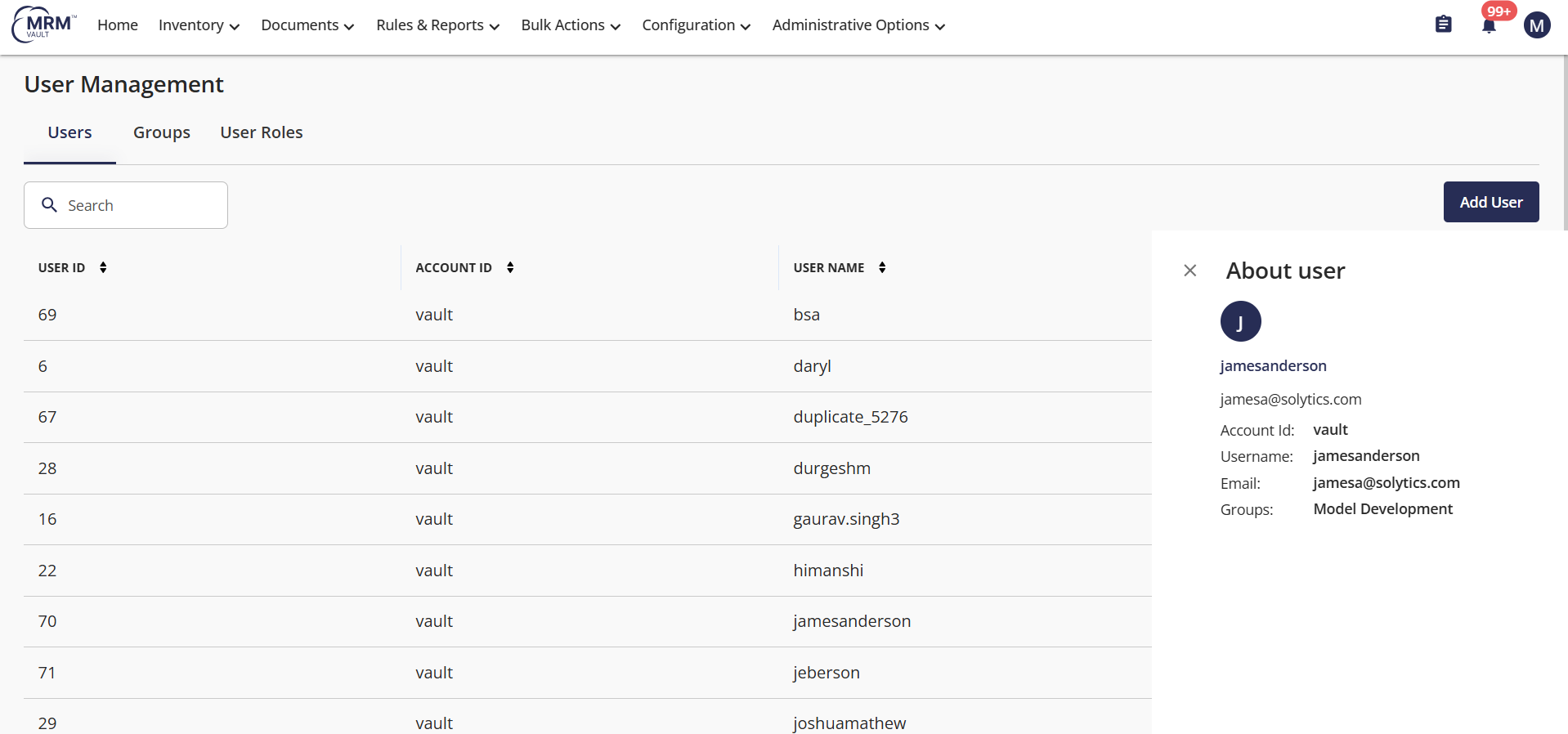
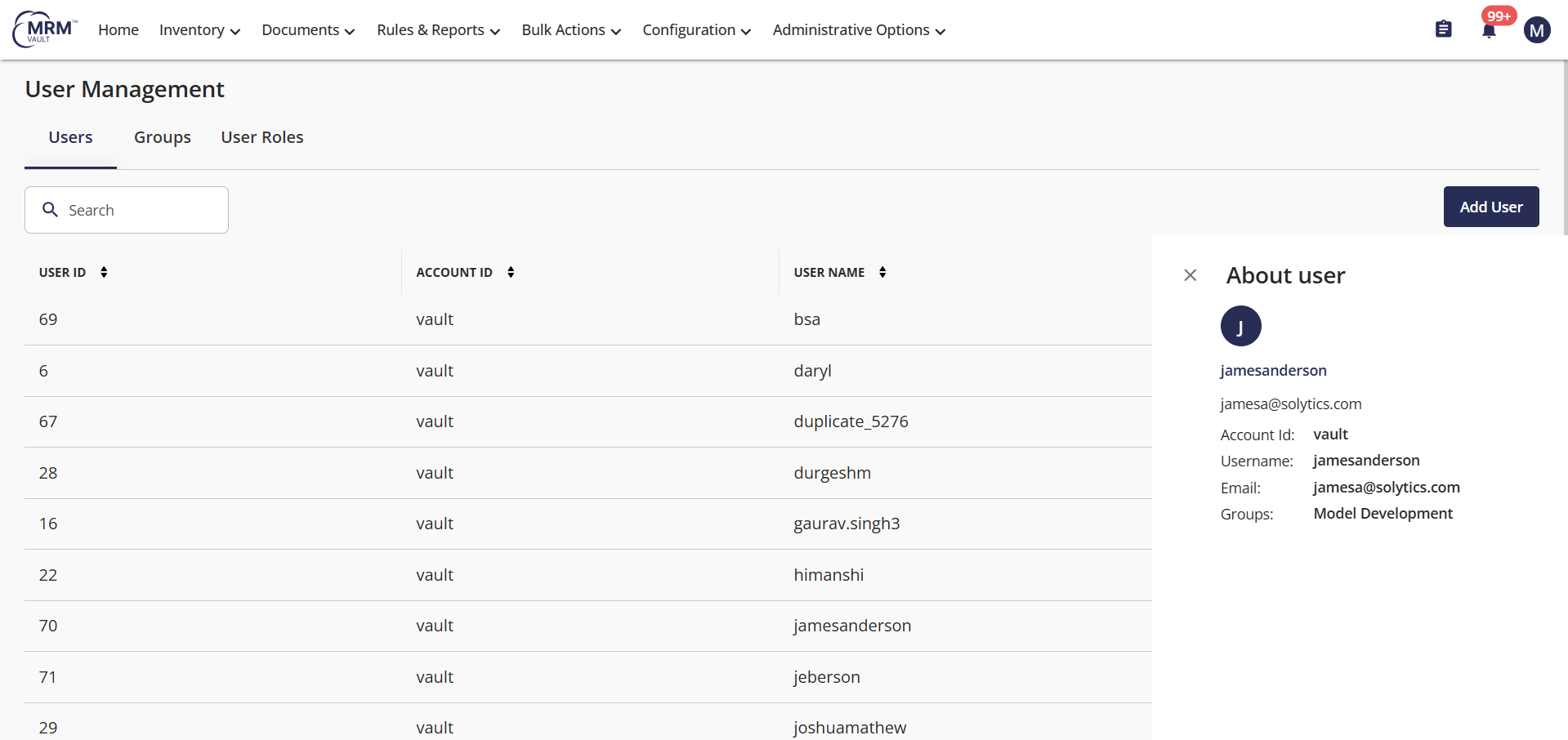
Select and right-click a user profile.
Click View User Details
The User Details will be visible on the right-side panel.
Suspend User
Click on the Administrative Options tab in the navigation menu of the platform.
Click on User Management in the submenu.
Switch to the Users tab.
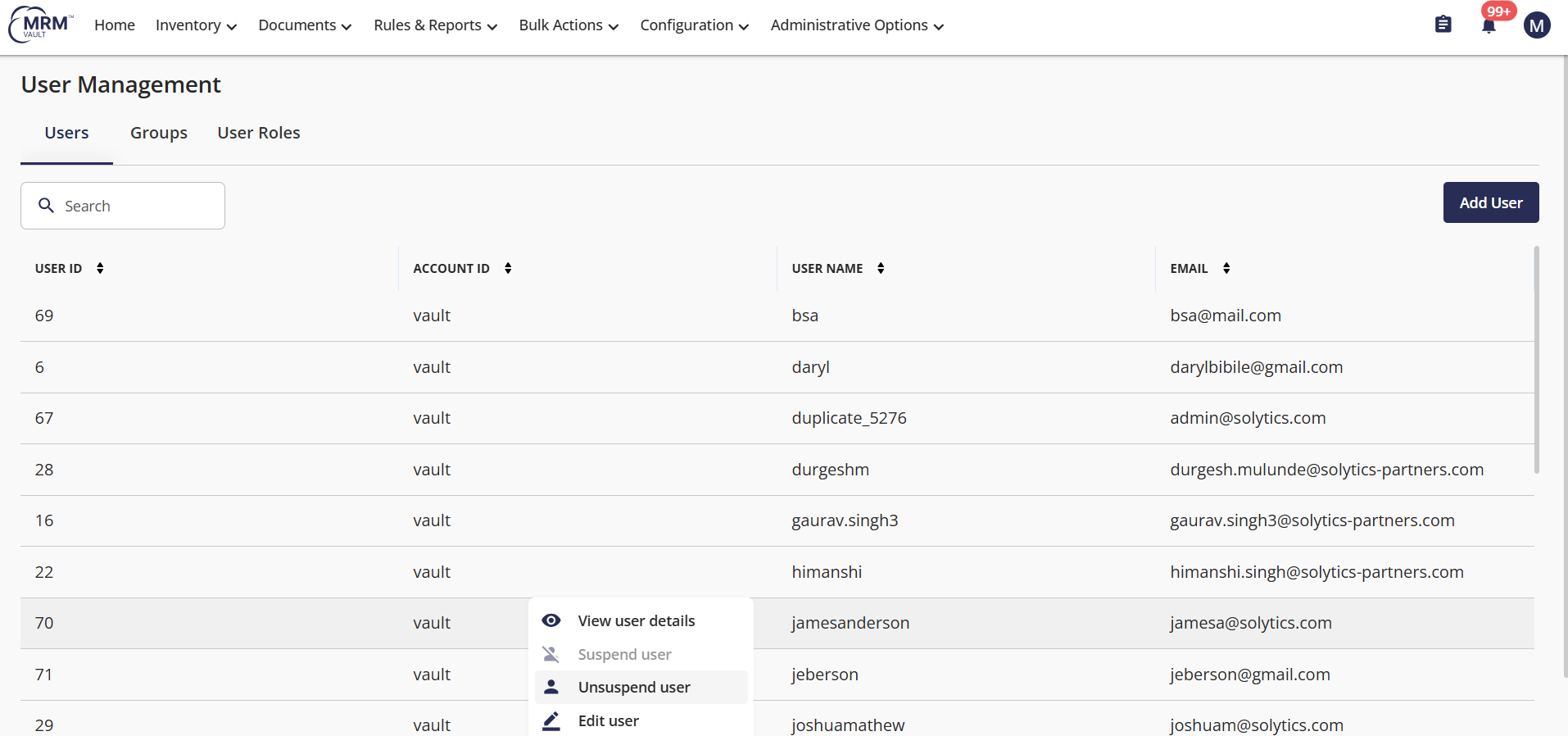
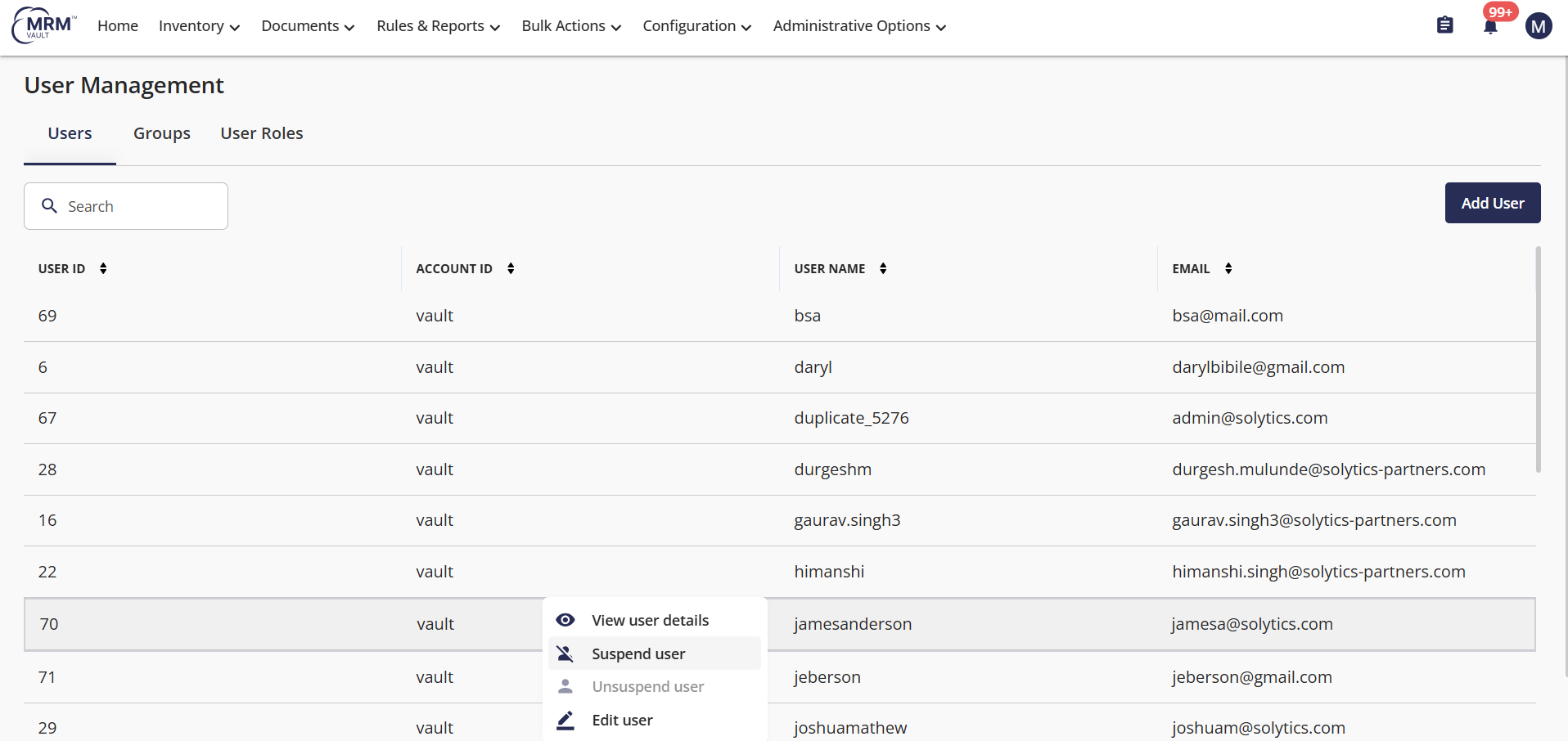
Select and right-click a user profile.
Click Suspend User
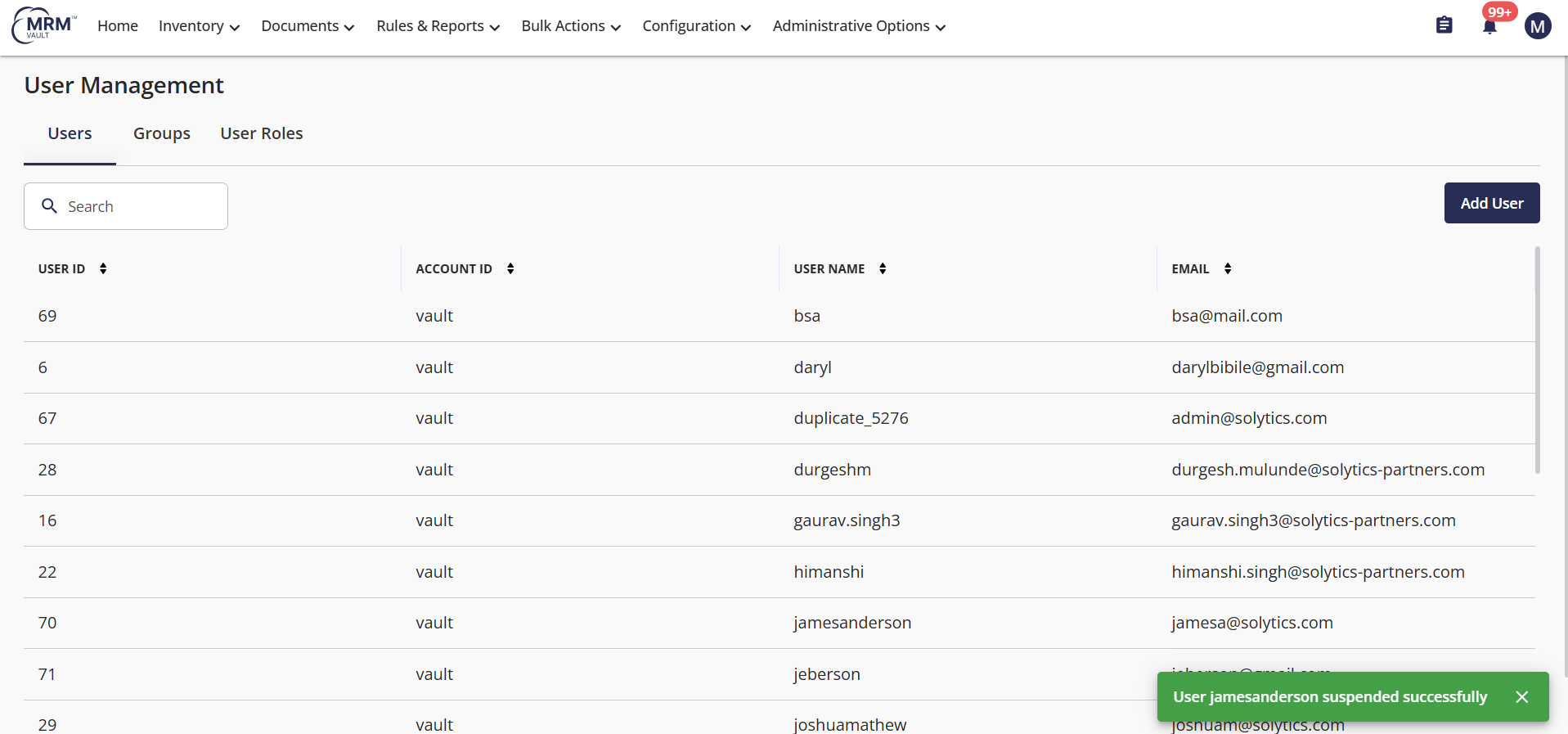
A message appears as the User got suspended successfully
Example
View User Details
Click on the Administrative Options tab in the navigation menu of the platform.
Click on User Management in the submenu.
Switch to the Users tab.
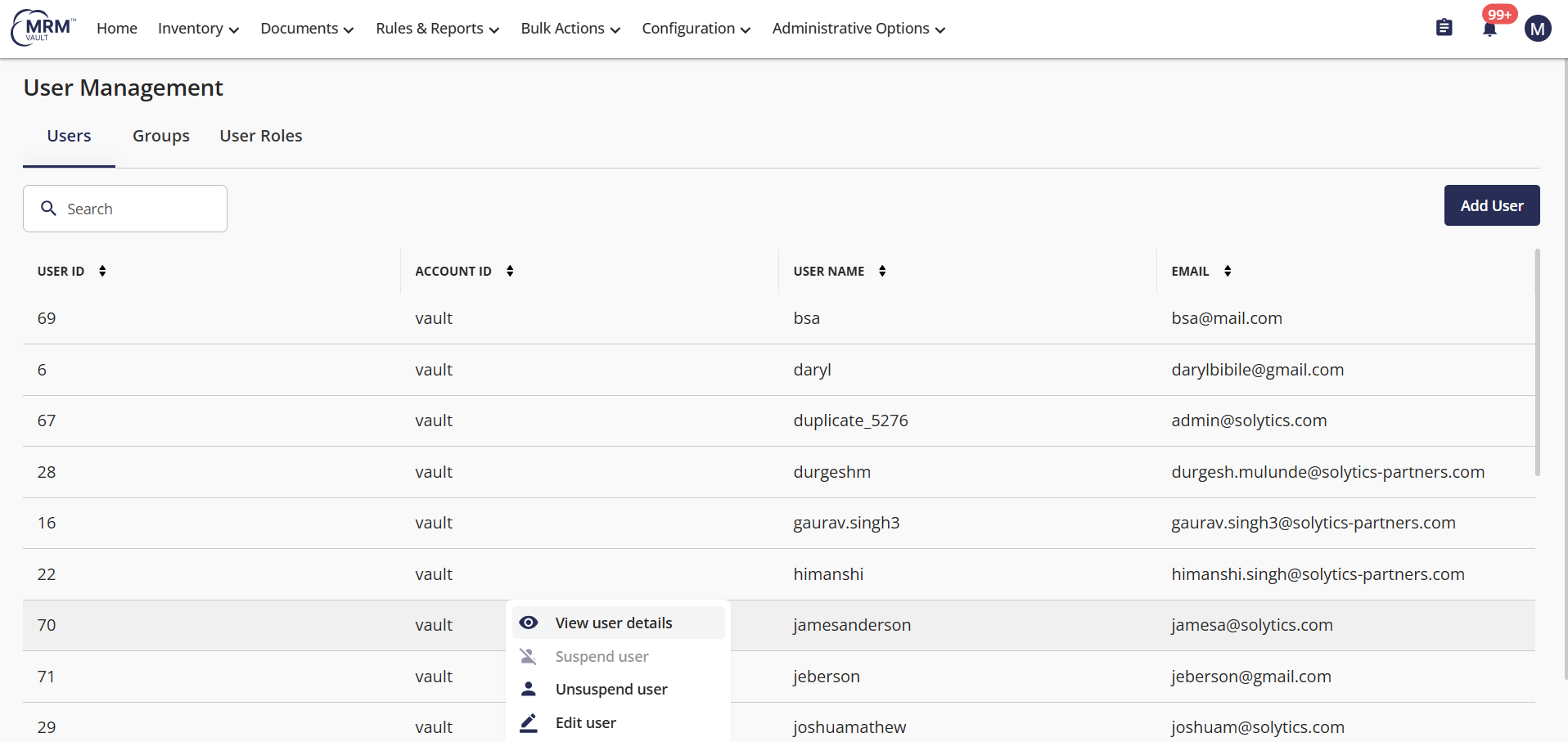
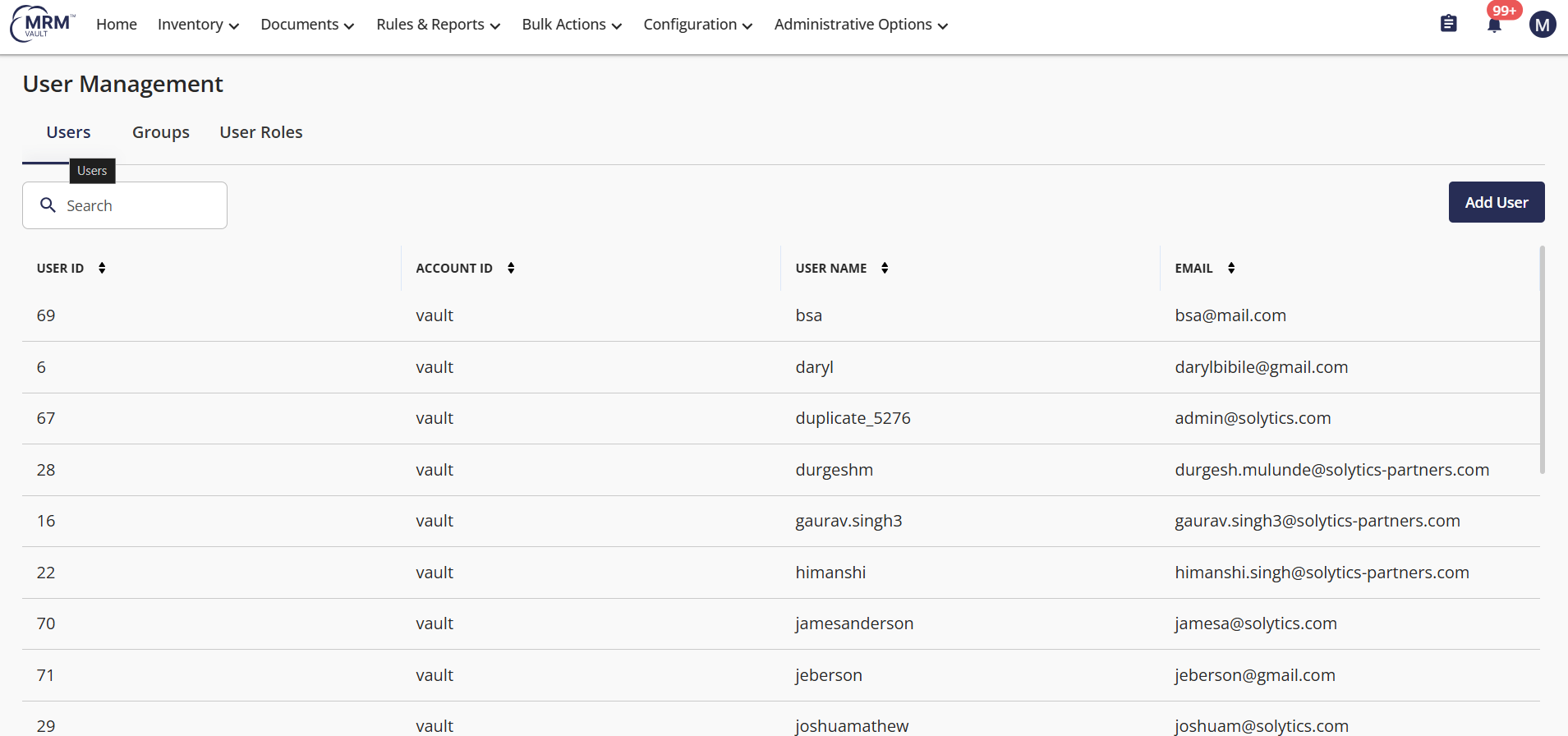 Select and right-click a user profile.
- Click View User Details.
- The User Details will be visible on the right-side panel.
Suspend User
Click on the Administrative Options tab in the navigation menu of the platform.
Click on User Management in the submenu.
Switch to the Users tab.
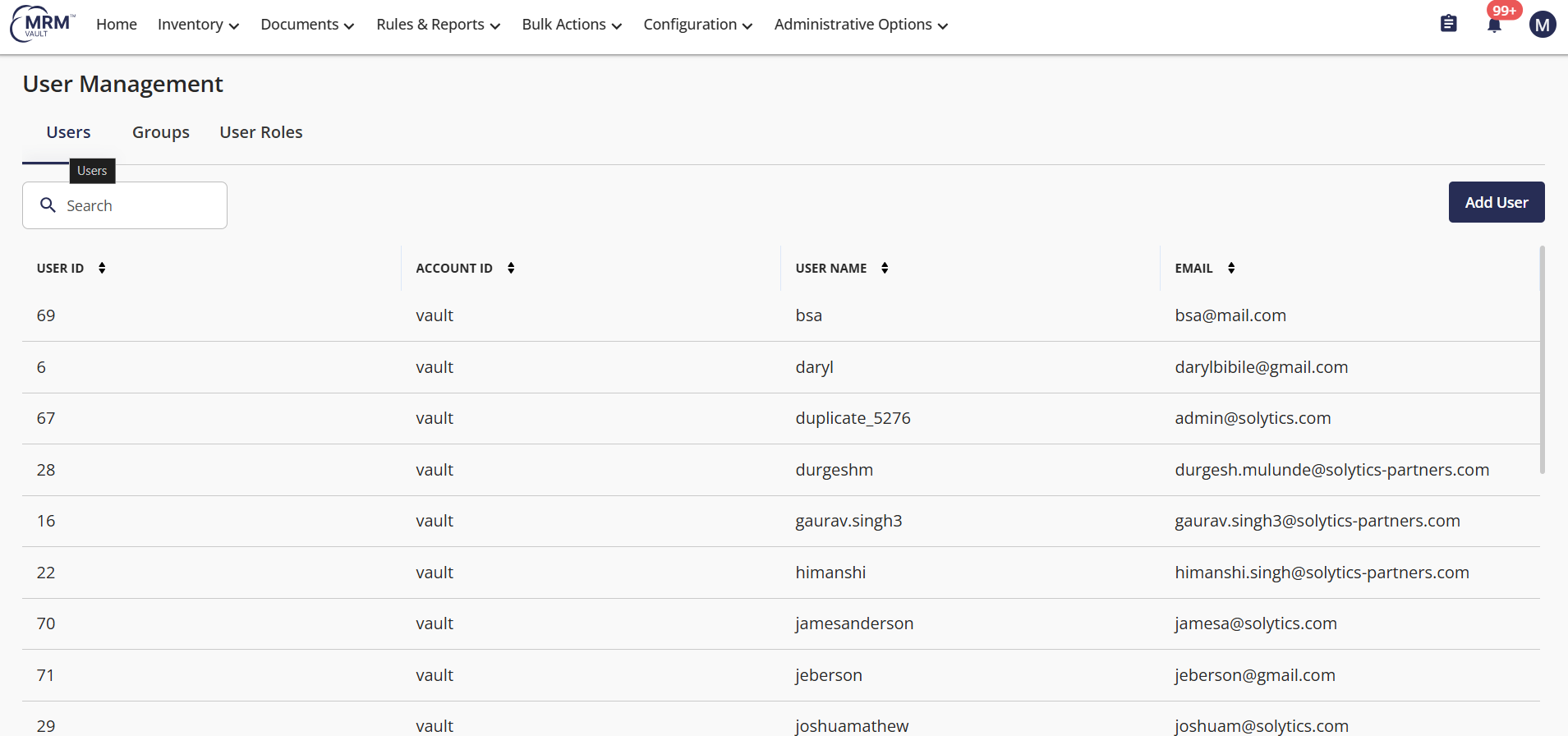
Select and right-click a user profile.
Click Suspend User
A message appears as the User is suspended successfully.
Unsuspend User
Click on the Administrative Options tab in the navigation menu of the platform.
Click on User Management in the submenu.
Switch to the Users tab.
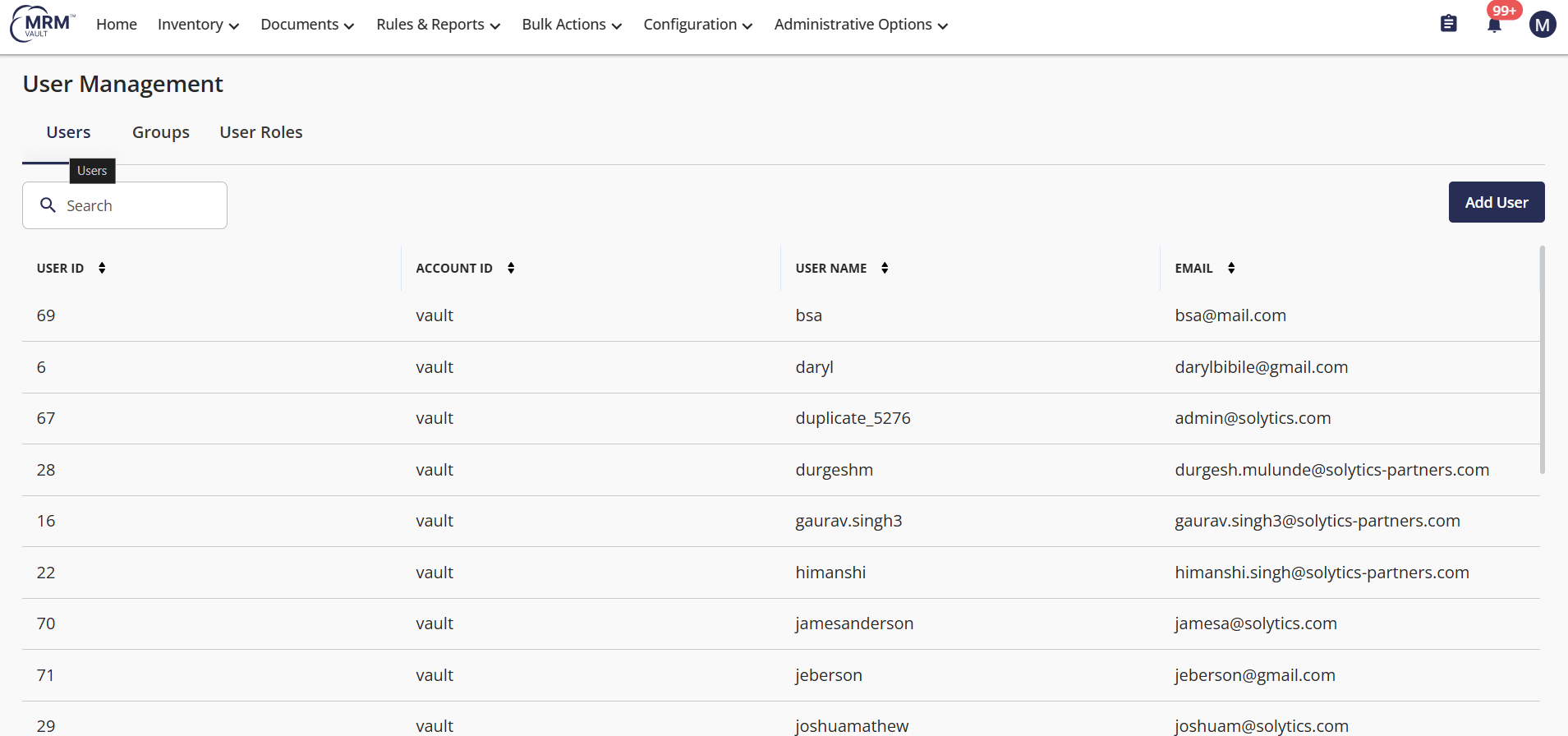
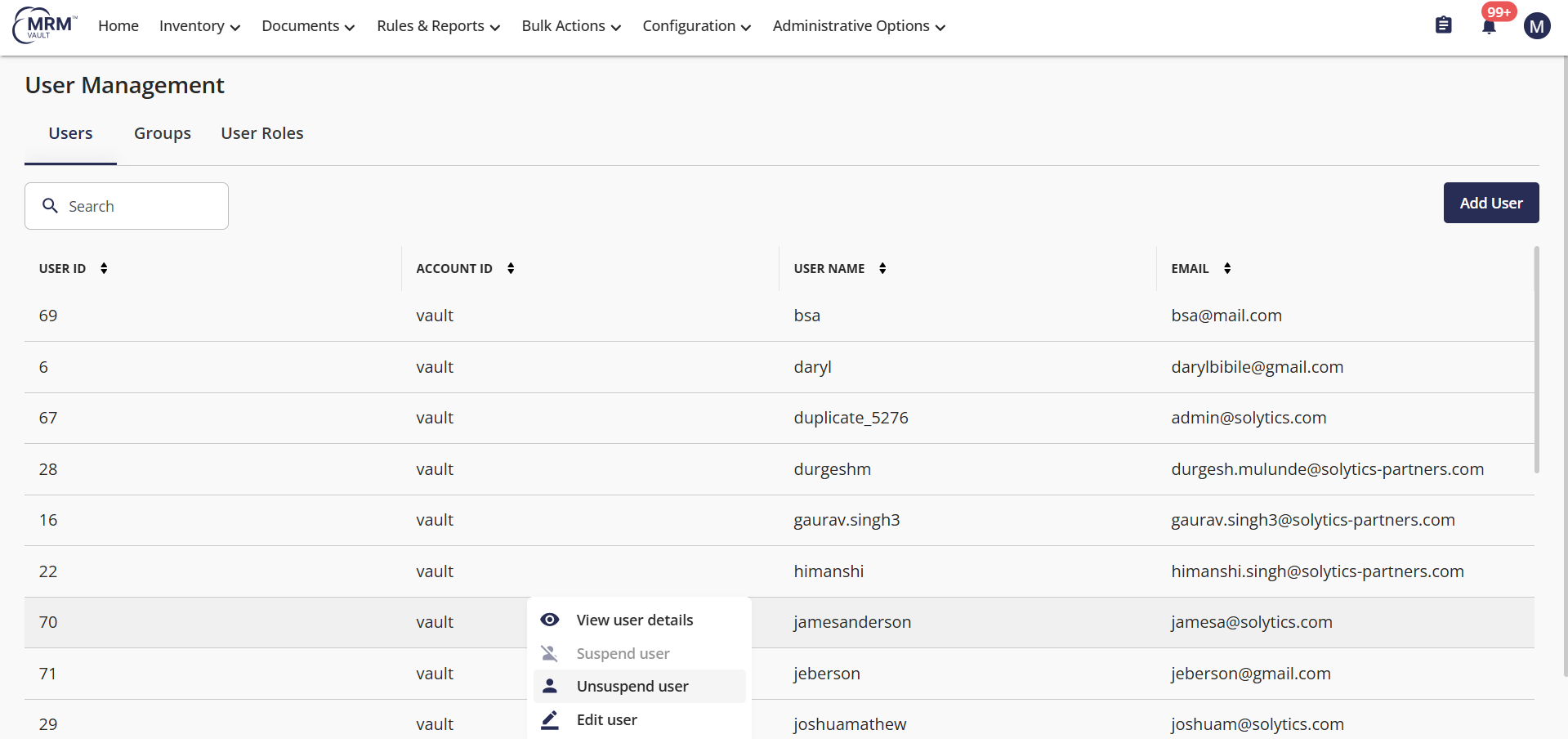
Select and right-click a user profile.
- Click Unsuspend User
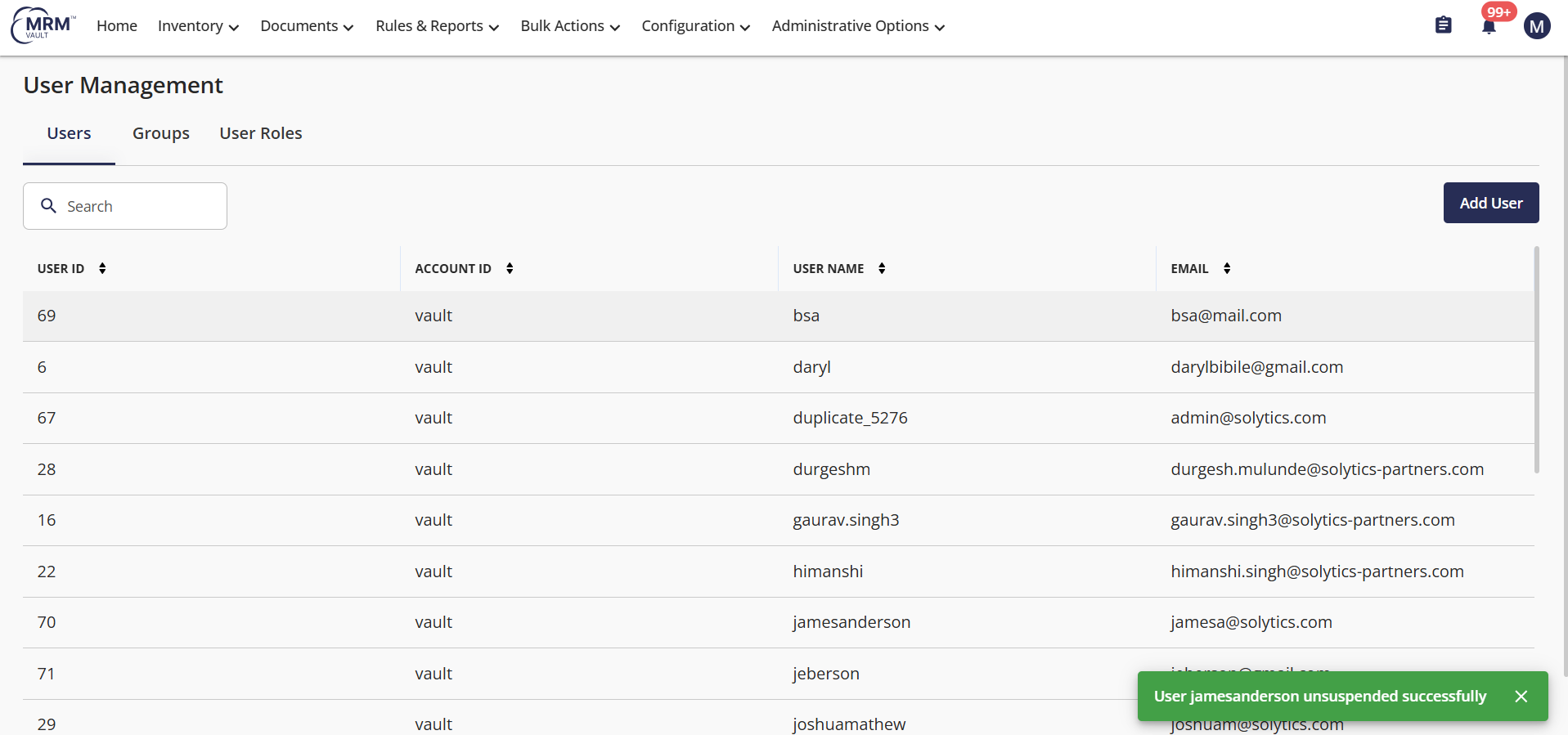
- A message appears as the User is unsuspended successfully.
Video
How to suspend and unsuspend a user temporarily.mp4
Limitations
Bulk suspended or unsuspended is not possible.
User cannot suspend or unsuspend their account.
FAQs
Q: Who can suspend / Unsuspend a user?
A: Users with administrative permissions or appropriate access permissions for the user management section can suspend or unsuspend users.Q: Who can view user details?
A: Users with appropriate permissions, such as administrators, can view detailed user information.Q: Can a suspended user access models and other details on the platform?
A: No, a suspended user will not be able to log onto the platform.
Related Topics
Groups
User Roles
Was this article helpful?
That’s Great!
Thank you for your feedback
Sorry! We couldn't be helpful
Thank you for your feedback
Feedback sent
We appreciate your effort and will try to fix the article